Outliner Tools
Outliner Tools extends Unreal Engine's World Outliner with practical controls for organizing complex levels and preventing accidental edits.
It adds three dedicated Outliner columns—Collections, Lock and Targetable—plus custom folder colors, recursive folder controls, Collection management and persistent per-map state.
Outliner Tools is an Editor-only plugin. It does not add gameplay systems or runtime dependencies to packaged games.
Main Features
- Lock / unlock individual actor and complete folder transforms directly from the World Outliner.
- Enable or disable editor selection for individual actors. and complete folder
- Assign custom colors to World Outliner folder icons.
- Create map-specific Outliner Collections with custom names and colors.
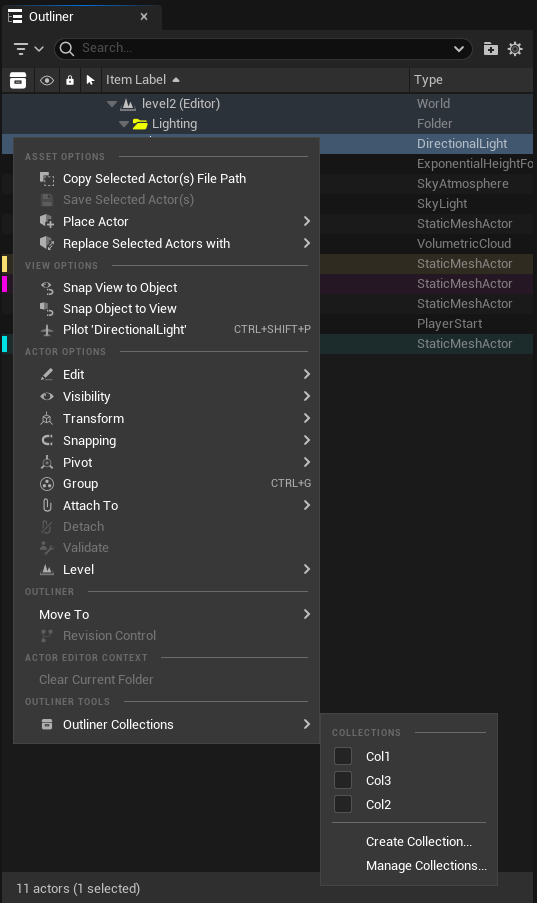
- Assign one or multiple selected actors to one or multiple Collections.
- Display colored Collection markers and subtle full-row highlighting.
- Search for actors by Collection name using the World Outliner search field.
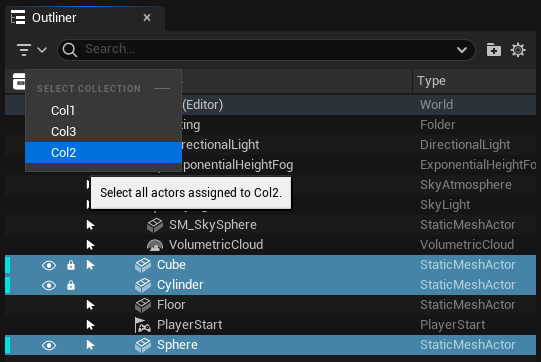
- Select every actor assigned to a Collection from the Collections column header.
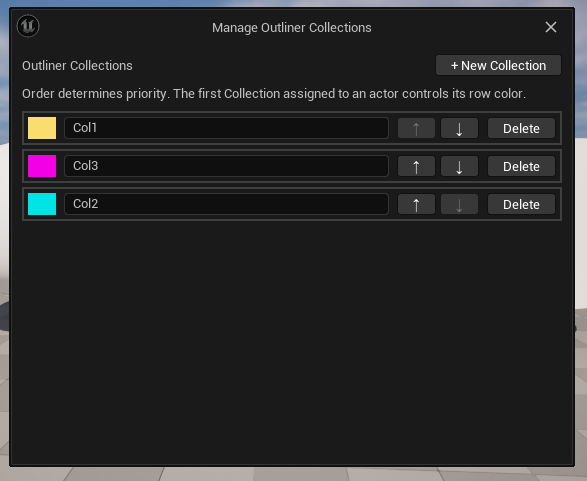
- Rename, recolor, reorder and delete Collections from a dedicated manager.
- Preserve Outliner Tools state across saving, closing, reopening, renaming, moving, duplicating and copying maps.
- Support Undo and Redo for actor Lock and Targetable changes.
-
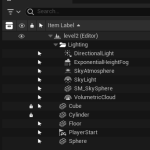
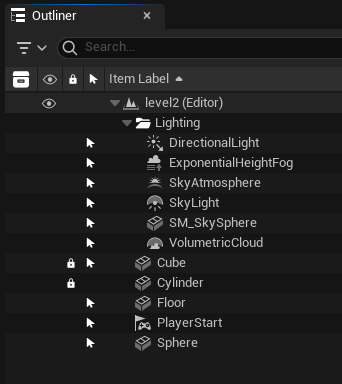
3 new columns to lock, disable click aand sorting coletions -
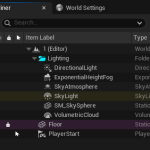
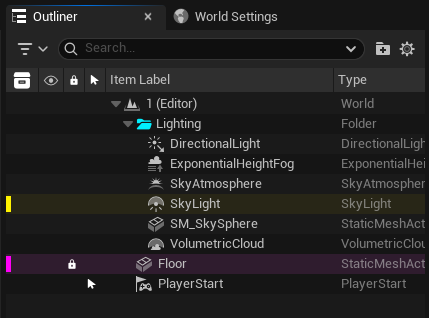
Clear visualization -
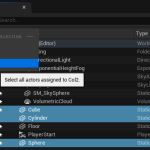
Select an entire Collection in one click -
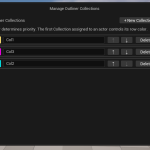
Manage coletions -
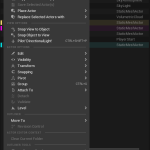
add to collections in one click
Installation
Installation from Fab
- Add Outliner Tools to your Fab Library.
- Install the plugin for your Unreal Engine version through Fab or the Epic Games Launcher.
- Open your Unreal Engine project.
- Go to Edit > Plugins.
- Search for Outliner Tools.
- Enable the plugin if it is not already enabled.
- Restart Unreal Editor when requested.
Manual installation using a precompiled package
Use a package built for the exact Unreal Engine version used by your project.
- Close Unreal Editor.
- Create a Plugins folder beside your project's .uproject file if one does not already exist.
- Copy the complete OutlinerTools folder into the project's Plugins folder.
- Confirm that the descriptor is located at:
<YourProject>/Plugins/OutlinerTools/OutlinerTools.uplugin - Open the project.
- Enable Outliner Tools from Edit > Plugins if necessary, then restart the editor.
Do not combine files from packages built for different Unreal Engine versions. Delete an older OutlinerTools folder completely before copying a replacement.
Manual installation from source
Source installation requires a working C++ toolchain supported by the selected Unreal Engine version.
- Close Unreal Editor.
- Copy the complete OutlinerTools folder into <YourProject>/Plugins/.
- Regenerate the project's IDE files if required.
- Compile the project or open it and allow Unreal Engine to build the plugin.
- Enable Outliner Tools from Edit > Plugins and restart the editor if requested.
Quick Start
- Open Window > Outliner. (if it is not open already)
- Confirm that the Collections, Lock and Targetable columns are visible.
- Click a Lock or Targetable cell to toggle that state for an actor or folder.
- Right-click a folder to assign a custom folder color.
- Select one or more actors, right-click them and open Outliner Collections to create a Collection or change membership.
- Save the level to commit its current Outliner Tools state.
If a column was manually hidden, restore it using the World Outliner's column selector.
Lock Column
The Lock column controls actor transform editing.
Actors
- Click an actor's Lock cell to toggle its transform lock.
- A visible padlock means the actor is locked.
- An empty cell means the actor is unlocked.
- A locked actor cannot be moved, rotated or scaled accidentally in the editor.
- Locking an actor does not make it unselectable. Use the Targetable column when selection must also be prevented.
Folders
- Click a folder's Lock cell to apply the state recursively.
- The rule affects actors in that folder and its nested subfolders.
- Actors added to or moved into the folder inherit its effective folder rule.
- A nested folder can define its own state and override an inherited parent-folder state.
Targetable Column
The Targetable column controls whether actors can be selected in the editor.
Actors
- A visible cursor icon means the actor is targetable and can be selected.
- An empty cell means the actor is protected from editor selection.
- Click the cell to toggle between the two states.
- When selection is disabled, the actor is removed from the current selection and protected against subsequent editor selection.
This feature controls editor selection only. It does not change runtime collision, gameplay input, traces, damage or targeting systems.
Folders
- Click a folder's Targetable cell to apply the state recursively.
- The rule affects actors in that folder and its nested subfolders.
- Actors added to or moved into the folder inherit its effective folder rule.
- A nested folder can override the state inherited from its parent folder.
Folder Colors
Folder colors provide a direct visual distinction between World Outliner folder hierarchies.
Assign a folder color
- Select exactly one folder in the World Outliner.
- Right-click the folder.
- Find the Outliner Tools section.
- Select Folder Color....
- Choose the desired color.
The selected color is applied to the custom open and closed folder icons.
Remove a custom folder color
- Right-click the folder.
- Find the Outliner Tools section.
- Select Reset Folder Color.
Use Reset Folder Color from the folder context menu to remove the plugin's custom color. The native color picker's Reset to Default command restores the color that was active when that picker was opened; it does not necessarily remove an existing Outliner Tools color.
Outliner Collections
Collections are map-specific logical groups for actors. They do not move actors, create Unreal folders or modify the level hierarchy.
An actor may belong to multiple Collections at the same time.
Create a Collection
- Select one or more actors in the World Outliner.
- Right-click the selection.
- Open Outliner Collections.
- Select Create Collection....
- Enter a unique Collection name.
- Choose a color.
- Select Create.
Assign or remove actors
- Select one or more actors.
- Right-click the selection.
- Open Outliner Collections.
- Toggle the checkbox beside a Collection name.
When multiple actors are selected, the command applies to the full selection. A checked Collection means every selected actor currently belongs to it.
Collection visualization
- The Collections column displays a colored marker for each Collection assigned to an actor.
- Up to five markers are displayed simultaneously in the compact column.
- Hover over the markers to see the complete Collection list.
- An actor's row receives a subtle tint based on its highest-priority Collection.
- Collection names are included in World Outliner search data, so entering a Collection name in the search field filters its actors.
Collection priority
If an actor belongs to several Collections, the highest Collection in the manager controls the full-row tint. Other memberships remain visible as colored markers.
To change priority:
- Select one or more actors and right-click the selection.
- Open Outliner Collections > Manage Collections....
- Use the up and down arrows to reorder Collections.
Manage Collections
Open Outliner Collections > Manage Collections... to:
- Create a new Collection.
- Rename a Collection.
- Change its color.
- Move it up or down in priority.
- Delete it.
Deleting a Collection only removes the Collection and its memberships. It does not delete any actors.
Select all actors in a Collection
- Right-click the Collections column header.
- Choose a Collection from Select Collection.
Every actor assigned to that Collection in the current map will be selected.
Persistence and Map Operations
Outliner Tools stores its organization state per map.
The persistence system supports:
- Normal Save.
- First Save.
- Save As.
- Map duplication and copying.
- Map renaming.
- Moving a map to another Content Browser folder.
- Map deletion cleanup.
- Folder renaming, moving and deletion.
- Editor closing and reopening.
Save the level after making changes. Unsaved changes follow Unreal Engine's normal save and discard behavior.
Folder and Collection data are stored in:
<YourProject>/Config/OutlinerTools/FolderStates.json
<YourProject>/Config/OutlinerTools/Collections.json
Each map also carries an internal persistent identifier used to preserve the correct state when its asset is renamed or moved and to create independent state when it is duplicated or saved as another map.
For team projects, include the map assets and the Config/OutlinerTools directory in source control if the same Outliner Tools organization must be shared with other users.
Requirements
Requirements
- Unreal Engine 5.3–5.8.
- Windows 64-bit.
- Unreal Editor.
No third-party plugins or external runtime dependencies are required.
Scope and Limitations
- Outliner Tools is Editor-only.
- Version 1.0 officially supports Win64 only.
- Lock affects editor actor transforms; it is not a runtime physics or mobility system.
- Targetable affects editor selection; it is not a gameplay targeting system.
- Collections organize actors only. They are independent from Unreal Engine folders, Content Browser Collections and runtime gameplay systems.
- Collections are scoped to the current map rather than shared globally across the project.
- Folder colors affect World Outliner folder icons, not Content Browser folders or assets.
- The Collections column shows a maximum of five compact markers, although an actor may belong to more Collections and all memberships remain available in its tooltip and context menu.
Before disabling or uninstalling the plugin, unlock actors and restore their Targetable state if those editor restrictions are no longer wanted.
Troubleshooting
The plugin was built for a different Unreal Engine version
Delete the existing OutlinerTools folder completely and install the package intended for the exact Unreal Engine version in use. Do not overwrite or merge two plugin builds.
Unreal Engine reports missing modules
- For a Blueprint-only project, install the correct precompiled package for that engine version.
- For a source installation, confirm that the supported Visual Studio C++ workload and Unreal Engine toolchain are installed, then compile the plugin.
A column is missing
- Confirm that Outliner Tools is enabled under Edit > Plugins.
- Restart Unreal Editor after enabling it.
- Use the World Outliner column selector to enable Collections, Lock or Targetable.
- Reopen the World Outliner if its previous layout was restored without the new columns.
A custom folder color does not return to white
Use Outliner Tools > Reset Folder Color from the folder context menu. Do not rely on the native color picker's Reset to Default command for this operation.
Collection or folder state is not shared with another user
Confirm that both JSON files inside <YourProject>/Config/OutlinerTools/ are included in source control together with the relevant map assets.
State does not persist after reopening the project
- Save the level after changing Outliner Tools state.
- Confirm that the project and <YourProject>/Config/OutlinerTools/ are writable.
- Confirm that the correct map was reopened.
Support and Documentation
Documentation and support:
https://estudiliminal.com/outliner-tools/
Liminal Interactive on Fab:
https://www.fab.com/sellers/Liminal%20Interactive
Version History
1.0
- Initial public release.
- Full support validated for Unreal Engine 5.3–5.8 on Win64.
- Validated in Blueprint and C++ projects.
- Lock, Targetable, Folder Colors, Collections and map-aware persistence included.
Copyright
Copyright © 2026 Liminal Interactive, S.L. All Rights Reserved.
Outliner Tools is proprietary software distributed under the applicable Fab license.